Windows Server runs on kcore as a normal VM. The guest disk is built once, outside the cluster, from installation media you are licensed to use. The node then boots that disk on Cloud Hypervisor. Three things have to be true or Windows stops at the boot manager: the kcore ISO must include the VM module, every guest must get Hyper-V CPU enlightenments, and the uploaded image must already contain virtio drivers.
The disk recipe is kcorehypervisor/windows-guest. It installs Server 2022 under QEMU with virtio-win 0.1.240, turns on the serial console (SAC) and OpenSSH, and leaves a raw disk. Newer virtio-win builds fail on Cloud Hypervisor. The recordings below are the kcore side: build the ISO, declare the VM in Terraform, then watch it boot.
1. Build the kcore ISO
The installer ISO is a NixOS image. It copies the ch-vm module onto the node,
including the Cloud Hypervisor unit that every VM uses. Build it from a checkout of kcore:
nix build .#nixosConfigurations.kcore-iso.config.system.build.isoImageThe result is a bootable ISO with volume id KCORE.
2. Declare the VM in Terraform
You do not edit the node. A current kcore image already starts every guest with
Hyper-V CPU enlightenments, which Windows needs and Linux ignores. The configuration
you write is a kcore_vm resource. Point it at the image uploaded to the
node. Leave cloud-init and SSH keys unset: Windows logs in as the Administrator
account from the image, not as a cloud-init user.
terraform {
  required_providers {
    kcore = {
      source  = "kcorehypervisor/kcore"
      version = "0.3.0"
    }
  }
}

provider "kcore" {
  controller_address = "192.168.40.107:9090"
  tls_cert_path      = var.tls_cert_path
  tls_key_path       = var.tls_key_path
  tls_ca_path        = var.tls_ca_path
}

resource "kcore_vm" "win" {
  name               = "win-01"
  cpu                = 2
  memory_bytes       = 4 * 1024 * 1024 * 1024
  storage_backend    = "lvm"
  storage_size_bytes = 40 * 1024 * 1024 * 1024

  image_path   = "/var/lib/kcore/images/windows-server-2022.qcow2"
  image_format = "qcow2"
  target_node  = "node-107"

  nic {
    network = "default"
    model   = "virtio"
  }

  desired_state = "running"
}

# Windows 11 is the same resource and a different image.
# The node does not present a TPM or Secure Boot, so the image has to be
# built with those setup checks skipped. See the windows-guest recipe.
resource "kcore_vm" "win11" {
  name               = "win11-01"
  cpu                = 2
  memory_bytes       = 4 * 1024 * 1024 * 1024
  storage_backend    = "lvm"
  storage_size_bytes = 40 * 1024 * 1024 * 1024

  image_path   = "/var/lib/kcore/images/windows-11.qcow2"
  image_format = "qcow2"
  target_node  = "node-107"

  nic {
    network = "default"
    model   = "virtio"
  }

  desired_state = "running"
}
storage_size_bytes is the virtual size of the disk, 40 GiB here, not the
size of the compact qcow2 file. terraform apply creates the VM on the controller.
Windows 11 does not need another provider argument. Upload its qcow2 and change
image_path.
3. Create the Windows VM
Upload the qcow2 from the recipe, then create the VM. --storage-size-bytes is
the virtual size of the disk (40 GiB here), not the size of the compact file. LVM converts
that qcow2 to a raw volume before Cloud Hypervisor opens it. The guest address on a NAT
network is reachable from the node. kctl console is the serial port, and SAC
comes up once Windows has started.
kctl --node 192.168.40.107:9091 node upload-image \
  -f windows-server-2022.qcow2 \
  --name windows-server-2022.qcow2 \
  --format qcow2

kctl create vm win-01 \
  --cpu 2 --memory 4G --network default \
  --storage-backend lvm --storage-size-bytes 42949672960 \
  --target-node node-107 \
  --image-path /var/lib/kcore/images/windows-server-2022.qcow2 \
  --image-format qcow2
4. IIS from the command line
IIS is an inbox feature. From an Administrator command prompt on the guest:
powershell -Command "Install-WindowsFeature Web-Server -IncludeManagementTools"
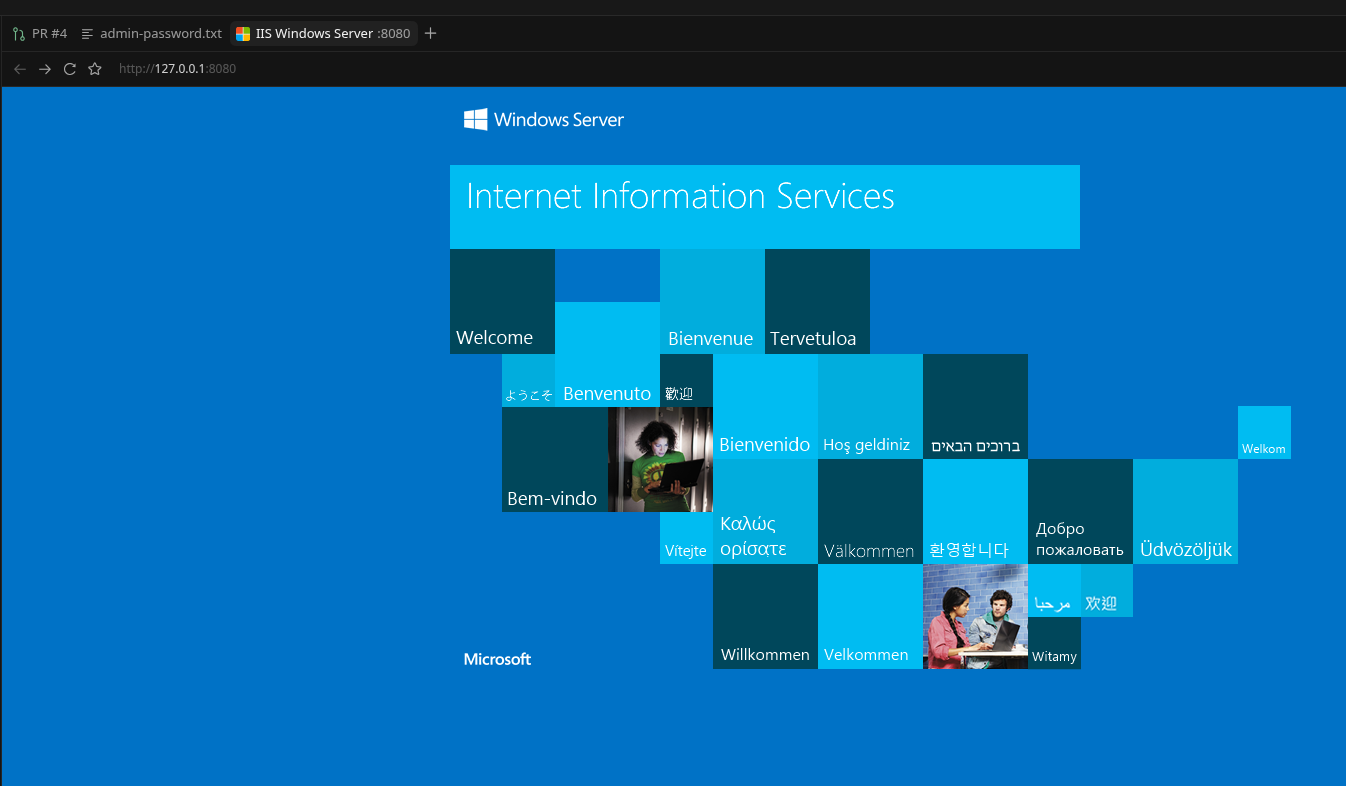
The page below is the stock IIS welcome site. The workstation cannot open the guest
address directly, so the browser is pointed at a port forward through the node
(ssh -N -L 8080:<guest-ip>:80 root@<node>).